To allow users to access Capturix VideoSpy remote
administration, using a Browser over a phone line you need to activate the
Windows Dial-Up Server, this service is available in Windows 98 or higher
and its available for Windows 95 on Microsoft site.
Microsoft Information:
http://support.microsoft.com/default.aspx?scid=kb;EN-US;q139710
Using Windows 9x:
|
 |
Windows 95
- Double-click My Computer .
- If there is a Dial-Up Networking folder in My Computer, Dial-Up
Networking is already installed. Skip to the "To install the Dial-Up
Networking Server Component" section. If there is no Dial-Up
Networking folder, continue with these steps.
- Click Start , point to Settings , click Control
Panel , and then double-click the Add/Remove Programs
icon.
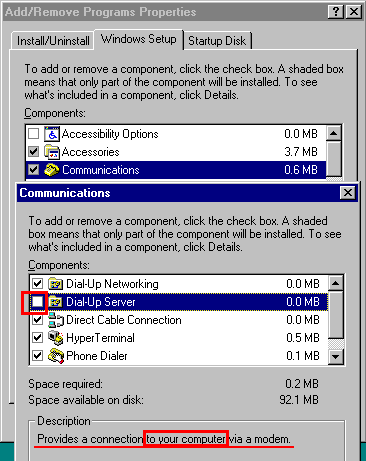
- On the Windows Setup tab, click Communications in
the Components box, and then click Details .
- Click to select the Dial-Up Networking check box, and
then click OK .
- Click OK .
Windows 98/Me
- Click Start , point to Settings , click Control
Panel , and then double-click the Add/Remove Programs
icon.
- On the Windows Setup tab, double-click Communications
.
- Click to select the Dial-Up Networking Server or
Dial-Up Server check box, and then click OK .
|
|
 |
To
configure a computer to be a Dial-Up Networking server, follow these
steps:
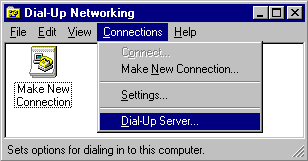
- In My Computer , double-click the Dial-Up Networking
folder.
- On the Connections menu, click Dial-Up Server .
- Click Allow Caller Access .
- If you want to require remote users to enter a password when
they connect to your computer by using Dial-Up Networking, click
Change Password , and then type the password you want to use.
- Advanced Settings: Type of Connection: PPP: Windows.....
- Click OK
|
|
 |
Now
your computer is available for remote access through a phone line:
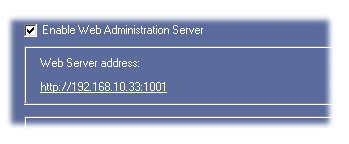
- In Capturix VideoSpy , click on Tray Menu, Remote
Administration.
- Enable Web Administration .
- Your access address will be the Web Server address or the
computer name: .
http://192.168.10.33:1001/
http://<computername>:<port>/
|
Using Windows 2000/XP:
|
 |
To make an incoming network
connection
- Open Network Connections.
- Under Network Tasks, click Create a new connection,
and then click Next.
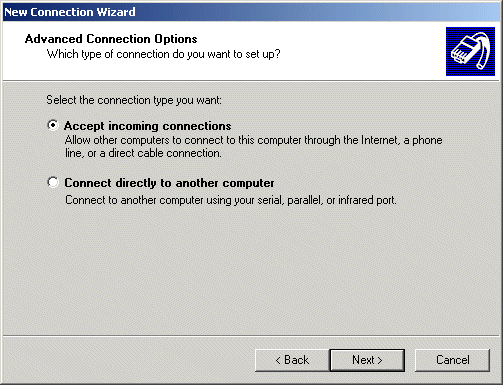
- Click Set up an advanced connection, and then click
Next.
- Click Accept incoming connections, click Next, and
then follow the instructions in the New Connection Wizard.
Notes
-
To open Network Connections, click Start, point to
Settings, click Control Panel, and then double-click
Network Connections.
-
You must be logged on as a computer administrator to complete
this procedure.
- If you make another incoming network connection, and you use the
New Connection Wizard again, the existing incoming network
connection is reconfigured.
- If your incoming connection and Fax Service have problems
working together (for example, you cannot receive incoming
connection calls on a device enabled for Fax receive), the modem may
not support adaptive answer. Check your modem documentation to
verify that you need to disable Fax receive for that device to
accept incoming connections.
- Incoming connections are only used for dial-up, VPN, or direct
connection clients.
- Select TCP/IP Protocol
|
|
|
Now
your computer is available for remote access through a phone line:
- In Capturix VideoSpy , click on Tray Menu, Remote
Administration.
- Enable Web Administration .
- Your access address will be the Web Server address or the
computer name: .
http://192.168.10.33:1001/
http://<computername>:<port>/
|
|