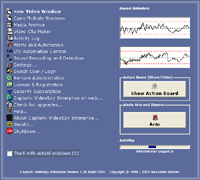
The application icon indicates the Capturix VideoSpy is running and allows user to access master menu.
New Video Window - To create and open a new video window if you want to use another video device or just to open a remote connection.
Open Multiple Video Windows - To create and open a group of new video windows if you want to use another video device or just to open a remote connection.
StartUp Windows - To select video windows that will be loaded when the application starts.
Media Archive - To consult or search for video or audio from a specific date or event, this will list all media recorded by the software.
Video Clip Maker - To create video clip files (AVI format) from the video archive, this ables you to view security video in any computer with a movie player.
Activity Log - To see all application activity, motion detection, user interaction, sensors readings... etc. (you can use this feature to pick a image from a specific event.)
Alerts and Automation - To create or edit alerts based on software events, like motion detection, user interaction, external hardware events (I/O). You can also create automation procedures like turning on a siren if motion detected.
I/O Automation Control - To create or edit external hardware control parameters (I/O). You can also create automation procedures like turning off a electric device based on a clock.
Sound Recording - To create or edit sound recording tasks, trigged by clock, motion detection or external hardware events.
HotKeys - To program the functions keys (F2..F12) to perform user defined tasks.
Settings - To adjust all global settings, like modem setup, passwords, security options, external hardware interface, etc.
Switch User - To switch the user logged into application, this can be used to select the user that is in control.
Administrator Password by default is CAPTURIX but can be changed.
Remote Administration - To adjust all network server settings, passwords, maximum users, port, address, etc.
Security Subscription Account - To setup an account with a Security Provider. You need to have a subscription with a 3rd party company.
Capturix VideoSpy on web - This will open your internet browser in Capturix VideoSpy Home Page.
License and Registration - Registration Information, all license information about this capturix customer.
Check for Upgrades - To search for a Upgrade, Capturix AutoUpdate will search for a software upgrade and download a upgrade if exists a new version of the software.
Help - Will open a help window
About Capturix VideoSpy - Copyright information.
Stealth - Make VIdeoSpy invisible
Quad Style resize - This will resize the active video windows to use the maximum screen area*
Quad Style resize (Maximize Video) - This will resize the active video windows to use the maximum screen area, this will hide the video controls.*
ShutDown - This will terminate all Capturix VideoSpy services and close the application.
* - Only for Internet Edition
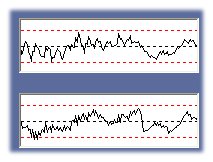
Sound Detection
This will display in real time the level of the sound input and the limit that can be reached before detector triggers.
Show Action Board (only for Enterprise Edition)
This button will Show/Hide the Map of the surveillance instalation with all dynamic icons for cameras, outputs and sensors.
Arm/Disarm
This button will turn on/off all Alerts that are checked on the Alert and Automation window.
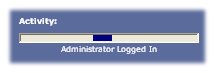
Activity
This monitors the activity of the application, must be running all the time.