 |
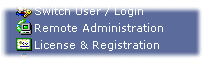
To access Remote Administration settings, just go to System Tray and click VideoSpy icon. |
|
|
To access Remote Administration settings, just go to System Tray and click VideoSpy icon. |
What is remote administration ?
Capturix VideoSpy have a internal web server that ables user to access the video surveillance system from any browser in any part of the world.
You can use a Modem connection (creating a VPN dial-up server) or ADSL permanent connection.
Web Server:
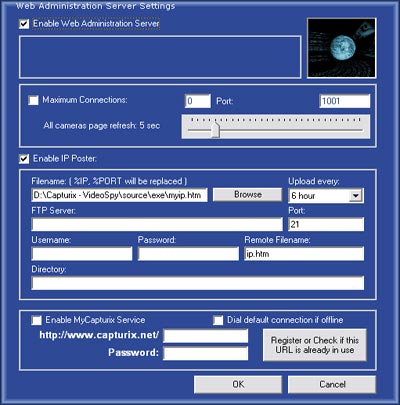
You must enable the web server to start the service.
Port - The port is the number of the listening port that user use to enter on the system, by default the port used is 1001, if you want to access without entering any port number on browser, change to 80 (default port for browser).
For ports different than 80, you have to enter a address like:
http://<IP of the server>:<PORT>/ example http://100.220.145.2:1001/
For port configured using 80, you have to enter a address like:
http://<IP of the server>/ example http://100.220.145.2/
Maximum Connections - Is the number of the simultaneous connections handled by the web server, this is used to secure the logged users.
PDA & Mobile Phones Access:
Some phones and PDA's do not support standard login pages, for that you must use:
http://<IP of the server>[:port]/$openlogin/<username>/<password>/
That will make a automatic login on the server.
All cameras refresh page
This option sets the time of each refresh on All cameras page.
IP Poster
This option ables user to post a dynamic ip of the computer to be accessed remotely by other computers.
With this option you can send a HTML page to a FTP server each period of time:
.
Filename - The local file that contains the HTML page to be send. The %ip and %port will be replaced by the computer ip and server port
Upload every - Adjusts the time interva between uploads
Username, Password - The FTP account user details
FTP Server and Port - Address of the remote FTP server
Remote Filename - The name that the file will have on the server
Directory - Remote directory on the FTP server
MyCapturix Service: (only for Enterprise Edition)
This feature ables you to access your surveillance software through internet using a xDSL, CABLE MODEM or broadband connection. This will post your ip on Capturix Servers, and you just need to enter on browser:
www.capturix.net/your choosen name.
1. Choose a name to be the address and a password of that address, press the register button to register the address and to verify if is available.
2. Enable the service and press ok.
That address will be registered and you can access your computer any time.
Remember that your computer and this software must be running to be available.
.© Capturix Software Technologies. All rights reserved.