 |
To access each device configuration you need to activate a device opening a video window and press the Video Device Configuration. |
|
|
To access each device configuration you need to activate a device opening a video window and press the Video Device Configuration. |
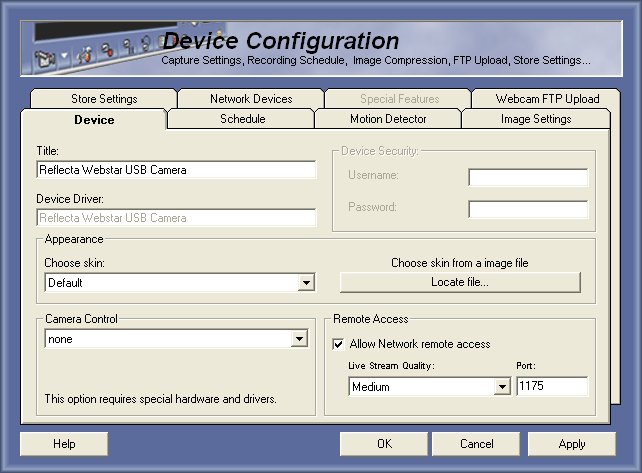
Title - The name of the camera/device (Eg. Hall Camera 1)
Device Driver - This field shows the hardware driver or network address of the camera/device
Device Security
This is only used on Network based devices, will be used to define the level of security for VideoSpy client.
Username - Username on remote device
Password - Password on remote device
Appearance
This option helps you to change the window skin, there are skins included with the software and others that you can download from the internet. Just click Locate File the choose the file to be the skin of the window.
Camera Control
This option is a special feature of this software, that ables you to use Capturix VideoSpy to control a Pan-Tilt-Zoom camera with a simple joystick.
This option menu is dynamic it means that can be different in other machines with other drivers installed. But there are 2 common items. NONE - it means that this window will not have any control device for PTZ cameras and Send information via TCP/IP - it means that you are using a network camera that is compatible with PTZ via TCP/IP - HTTP requests.
Remote Access
This option ables you to give permission to allow live streaming of this video window, this is use to Remote Administration server when you select Live video.
Allow Network remote access - To disable/enable the video streaming via TCP/IP. Disable if you are not using remote administration.
Live Stream Quality - This is used to adjust the image compression of the video stream, if you use a phone line or a low bandwidth channel decrease quality.
Port - This is the listen port of this camera webserver, you should change and configure this port if your system is behind a firewall or router.
© Capturix Software Technologies. All rights reserved.