 |
To access each device configuration you need to activate a device opening a video window and press the Video Device Configuration. |
Device Settings - Image Settings
|
|
To access each device configuration you need to activate a device opening a video window and press the Video Device Configuration. |
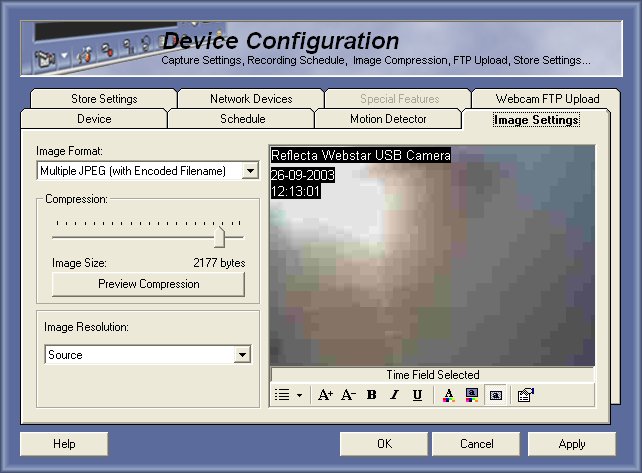
Image Format
There a several of formats that you can use to save your surveillance video, AVI is not recommended because it neededs a Initialization and a Finalization.
In Capturix VideoSpy there are Multiple of JPEG files and Multiple of BMP, in future will be supported more file types.
JPEG offers the best size-quality features.
Compression
If you use JPEG format you can adjust the quality of the image in compression gauge, remember if you increase compression you will decrease quality.
You can press in Preview Compression to see how image will be saved.
Image Resolution
This will change the resolution of the saved images, normally its common to choose Source, this will save at the resolution that is selected on Video Format of the video capture card/Webcam.
If you want to save space you can use a lower resolution.
You can adjust a custom resolution by selecting custom.
Adding information on Image
With Capturix VideoSpy you can add information (like timestamp) on save images, remember that you can't remove this when viewing because all this information will be imposed on each frame.
To select items just click on the item
Hide / Show Items - This button menu is used to hide or show the items that can be saved on images
Show/Hide Time - It will write the actual time (recorded image)
Show/Hide Date - It will write the actual date (recorded image)
Show/Hide Text - It will write custom text explained below
Show/Hide Status - It will write the window status (the same status that appears on the video window)
Show/Hide Title - It will write the title, this is the device description that appears on address bar.
Font Size - Ables you to increase and decrease the font size
Bold, Italic, Underline
Font Color - This button ables you to change color of the item
Font Background Color - This button ables you to change background color of the item
Font Background Type - This button ables you to select transparent background / opaque background
Item Properties - Ables you to change the Time, Date format, change the text description.
© Capturix Software Technologies. All rights reserved.