 |
To access each device configuration you need to activate a device opening a video window and press the Video Device Configuration. |
Device Settings - Store Settings
|
|
To access each device configuration you need to activate a device opening a video window and press the Video Device Configuration. |
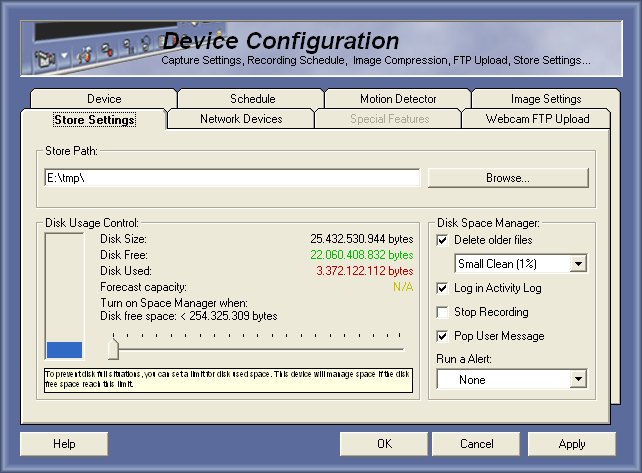
Store Path
This is the path where video images will be stored, its recomended to make a drive partition only for security video, this will prevent third party software to access the files.
We recomend that you have a partition per camera when used for professional use.
Just press Locate to point the new path.
Disk Usage Control
To prevent disk overload Capturix VideoSpy have a internal Space Manager to allow unlimited time recording without stops, this can delete the old files and keep recording, when the disk is full.
Use the gauge to adjust the minimum free space allowed, this will mark the limit of disk usage, when the disk have only the selected free space, Capturix VideoSpy will perform the following operations.
Disk Space Manager
Delete older files
This is defined as a default, ables Capturix to delete the older stored images.
Log in Activity Log
This will write on history log a warning message.
Stop Recording
This will stop recording until a user intervention.
Pop up user message
This will pop up a message window for user intervention.
Run a Alert
This will run a predefined alert that can be created on Alert & Automation configuration window.
Very useful if you want to send a SMS, E-MAIL,etc...
Hide Content (ONLY FOR ENTERPRISE EDITION)
This will protect the video files of being visualized by other software. All files will be hidden from other software.
© Capturix Software Technologies. All rights reserved.