 |
To access each device configuration you need to activate a device opening a video window and press the Video Device Configuration. |
Device Settings - Webcam FTP Upload
|
|
To access each device configuration you need to activate a device opening a video window and press the Video Device Configuration. |
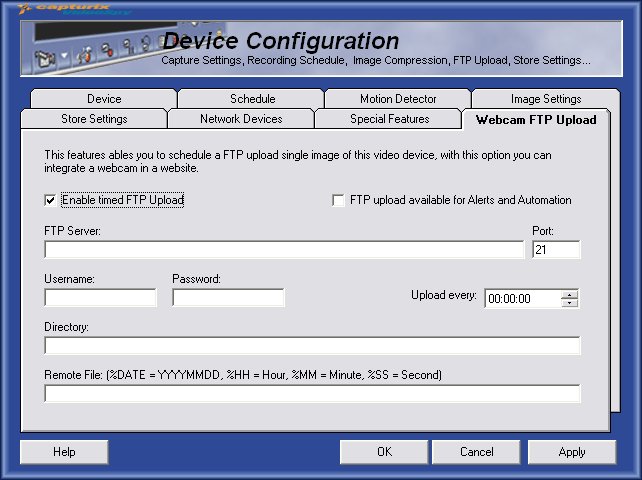
Enable timed FTP Upload
This feature ables you to send a image to a FTP Server, this allow you to have a webcam with your security cameras, this also can be adjustable for each device.
FTP Upload available for Alerts and Automation
This feature ables you to permit sending a image via FTP when a alert is trigged. See also Alerts and Automation.
FTP Server
This is the url field of the FTP Server that will be uploaded. Eg: ftp.myserver.com.
Port
Normally FTP Servers uses port 21, but if you have a special server you can use other port.
Username & Password
You must specify the account you will use to upload the server.
Upload Every.....
This will be the interval of time that the image will be upload.
Directory
You can upload to another directory in the server, if you want to upload to the root, just keep /.
Remote File:
This will be the filename that will be stored on the remote server (FTP Server).
You can send multiple files if you use on the remote filename this symbols:
%date - Actual date : YYYYMMDD (Year/Month/Day)
%hh - Actual hour
%mm - Actual minute
%ss - Actual second
© Capturix Software Technologies. All rights reserved.